
Navigating a computer without sight can feel overwhelming. Many individuals who are blind or visually impaired struggle to access websites, apps, and everyday software. The challenge isn’t just about technology—it’s about independence, inclusion, and empowerment. Without reliable tools, digital accessibility becomes a barrier instead of a bridge.
Commercial screen readers exist, but they can be expensive and limited for many users worldwide. This financial hurdle often leaves people excluded from equal opportunities in education, work, and communication. In a digital-first world, shouldn’t accessibility be a right, not a privilege?
That’s where NVDA (NonVisual Desktop Access) changes the game. NVDA is a free, open-source screen reader for Windows designed to empower users with visual impairments. With community-driven development, frequent updates, and robust features, NVDA software provides a powerful alternative to paid solutions. In this post, we’ll explore what NVDA is, why accessibility tools like this matter, and how you can install, customize, and use it effectively.
What is NVDA?
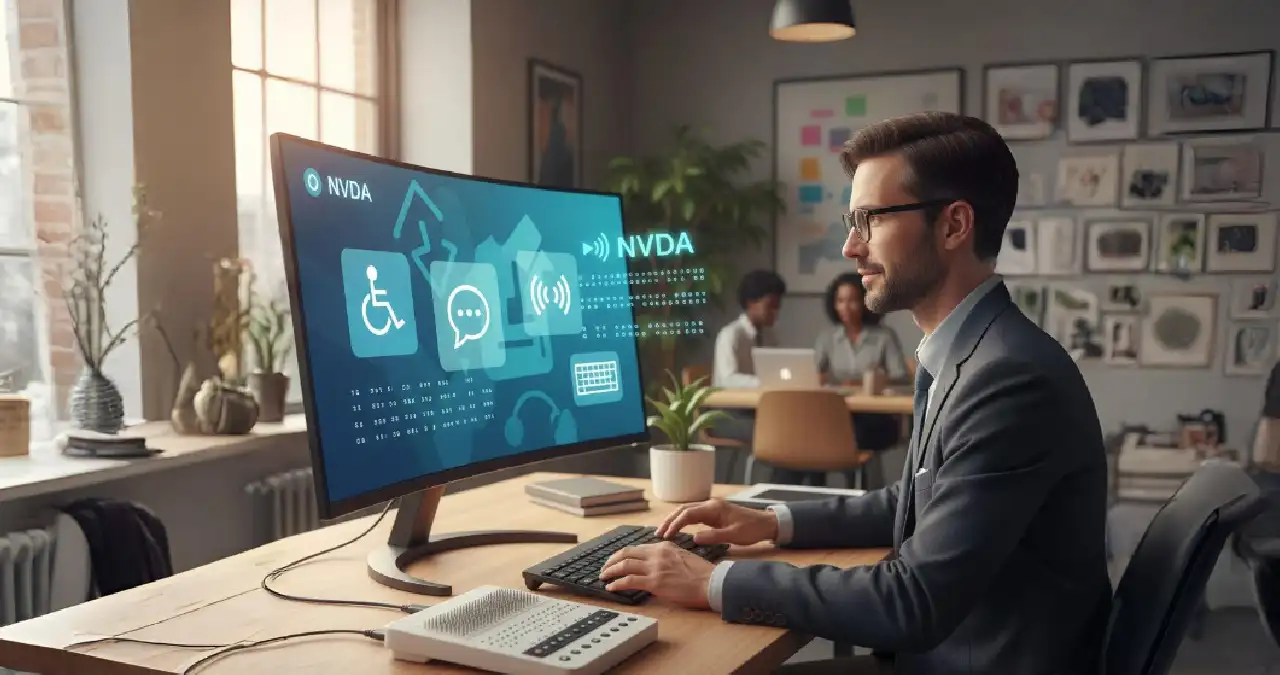
NVDA (NonVisual Desktop Access) is a free and open-source screen reader designed for Windows. It allows blind and visually impaired users to interact with computers through synthetic speech and braille displays. NVDA software is one of the most widely used accessibility tools worldwide, as it removes financial barriers and ensures digital inclusivity.
The project was first launched in 2006 by Michael Curran and James Teh, two visually impaired developers from Australia. To sustain the tool’s growth, they founded NV Access, a non-profit organization that oversees its ongoing development. NVDA quickly gained recognition because it offered professional-grade screen reading capabilities at zero cost.
Unlike commercial alternatives, NVDA is completely open source. This means developers and users worldwide can contribute improvements, add features, and expand language support. Its free-to-use nature has made it a cornerstone of digital accessibility, especially in education and workplaces where paid software can be restrictive.
In short, NVDA isn’t just a tool—it’s a movement toward equal access in the digital world.
Why NVDA Matters for Digital Accessibility
For millions of people, screen readers like NVDA are not optional—they are essential. These tools empower users with visual impairments to browse the web, write documents, send emails, and use apps independently.
Accessibility laws such as WCAG (Web Content Accessibility Guidelines) and ADA (Americans with Disabilities Act) stress the importance of creating inclusive digital spaces. However, compliance only makes sense if users have access to reliable assistive technology. That’s where NVDA plays a key role.
By offering a no-cost solution, NVDA removes economic barriers and bridges the digital divide. It ensures that a student in a low-income country or a professional in a large corporation can equally participate in today’s connected world. NVDA accessibility doesn’t just meet legal requirements—it fosters inclusivity at scale.
Key Features of NVDA
Voice Output and Speech Synthesis
NVDA converts on-screen text into natural-sounding speech. Users can choose between different synthesizers, adjust pitch and speed, and customize the reading style for a smoother experience.
Braille Display Support
The software supports a wide range of refreshable braille displays, enabling users who rely on braille to navigate digital content seamlessly.
Keyboard Shortcuts and Commands
NVDA is optimized for keyboard navigation. With intuitive NVDA commands, users can quickly move through text, switch windows, and control applications without relying on a mouse.
Multi-Language Support
With translations in over 50 languages, NVDA ensures accessibility for users across the globe. This multilingual approach extends inclusivity beyond English-speaking users.
Regular Updates and Community Support
Thanks to its open-source development model, NVDA receives frequent updates, bug fixes, and new features. A thriving global community also provides NVDA add-ons for extended functionality.
NVDA vs. Other Screen Readers
NVDA vs. JAWS
JAWS is one of the most well-known screen readers but comes with a steep licensing fee. NVDA, in contrast, is completely free. While JAWS may offer advanced features for enterprise settings, NVDA is widely regarded for its performance, accessibility, and affordability.
NVDA vs. Narrator
Windows includes a built-in screen reader called Narrator. While useful for basic needs, Narrator lacks the depth and flexibility of NVDA. NVDA offers better keyboard shortcuts, customization, and community support, making it a preferred choice.
NVDA vs. VoiceOver
VoiceOver, available on macOS and iOS, is a solid accessibility tool. However, it’s limited to Apple devices. NVDA stands out as the best free solution for Windows, giving PC users reliable and flexible accessibility.
Cost-Effectiveness
NVDA’s biggest advantage lies in cost. Where commercial tools like JAWS cost hundreds of dollars, NVDA’s zero-cost model ensures accessibility for all.
How to Download and Install NVDA
Getting started with NVDA is simple:
- Go to the official NV Access website.
- Click on NVDA download.
- Run the installer file and follow on-screen prompts.
- Choose between installing NVDA or running it as a portable version.
System requirements:
- Windows 7 or later
- At least 150 MB of free storage
- 1 GB RAM (minimum recommended)
Setup tips:
- Enable startup launch if you plan daily use.
- Familiarize yourself with NVDA tutorial guides available online.
Getting Started with NVDA
Navigating Windows with NVDA
Users can open applications, switch between windows, and manage files using keyboard commands.
Using NVDA in Web Browsing
NVDA works well with browsers like Chrome, Firefox, and Edge. It provides quick navigation through headings, links, forms, and tables.
Basic Reading Commands
Commands allow users to read text by word, line, or paragraph. You can also review content character by character.
Customization Options
Users can tweak voice speed, pitch, verbosity, and add custom scripts or NVDA add-ons to enhance functionality.
Benefits of Using NVDA
- Education: Students gain equal access to e-learning platforms and textbooks.
- Workplace: Employees can handle emails, reports, and meetings effectively.
- Daily use: Social media, shopping, and communication become accessible.
Being community-driven and open source, NVDA evolves constantly. Its zero-cost model ensures no user is left behind.
Challenges and Limitations of NVDA
- Some applications and websites may not be fully compatible.
- The learning curve can be steep for beginners unfamiliar with screen readers.
- NVDA is primarily Windows-only, limiting cross-platform use.
Real-World Use Cases of NVDA
- Students: Access digital libraries, attend online classes, and write assignments.
- Professionals: Draft documents, join virtual meetings, and analyze spreadsheets.
- Organizations: Deploy NVDA for employees to improve inclusive hiring practices.
Future of NVDA and Digital Accessibility
NVDA’s development roadmap focuses on better compatibility with modern apps, AI-powered voices, and improved braille support. As global awareness of digital accessibility grows, NVDA will continue to be a key player.
Open-source software like NVDA also highlights the power of community-driven innovation in making the world more inclusive.
Conclusion
NVDA is more than software—it’s a lifeline for digital accessibility. By being free, open source, and powerful, it opens doors for students, professionals, and organizations worldwide. If you want to support inclusivity and empower independence, consider giving NVDA a try today. Download NVDA and join the global accessibility movement.
Frequently Asked Questions
What does NVDA stand for?
NVDA means NonVisual Desktop Access.
Is NVDA really free?
Yes, NVDA is completely free and open source.
Can NVDA be used on Mac or Linux?
Currently, NVDA is designed for Windows only. For macOS or Linux, alternatives like VoiceOver or Orca exist.
How does NVDA compare to paid screen readers?
While tools like JAWS offer enterprise features, NVDA provides comparable performance at no cost.
Does NVDA support multiple languages?
Yes, it supports more than 50 languages worldwide.
Where can I get support for NVDA?
Support is available through NV Access forums, documentation, and community groups.